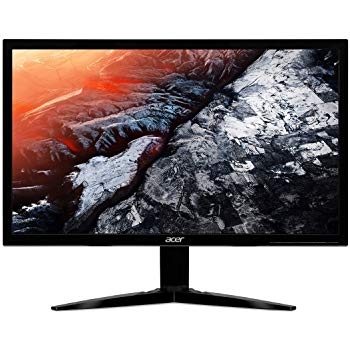
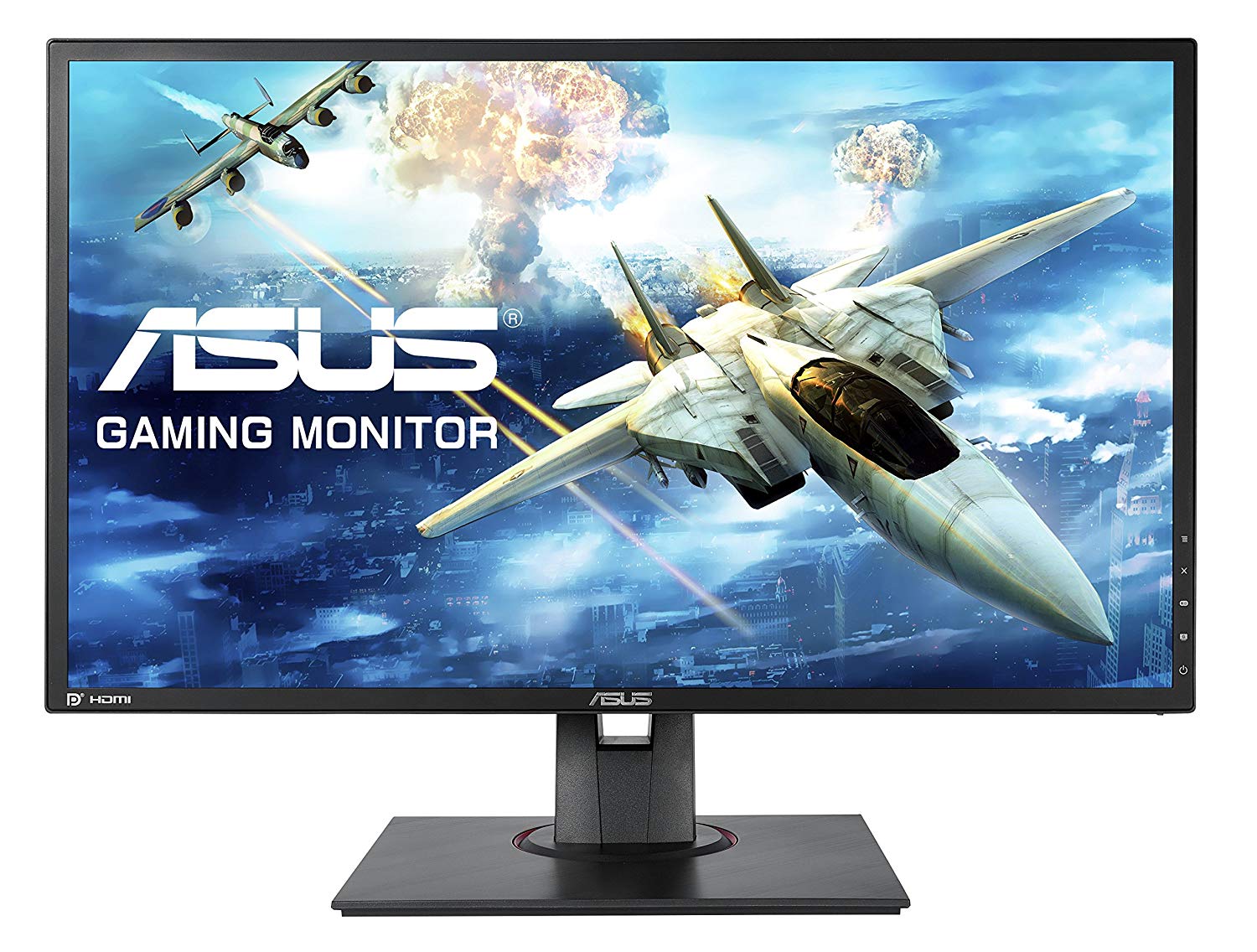
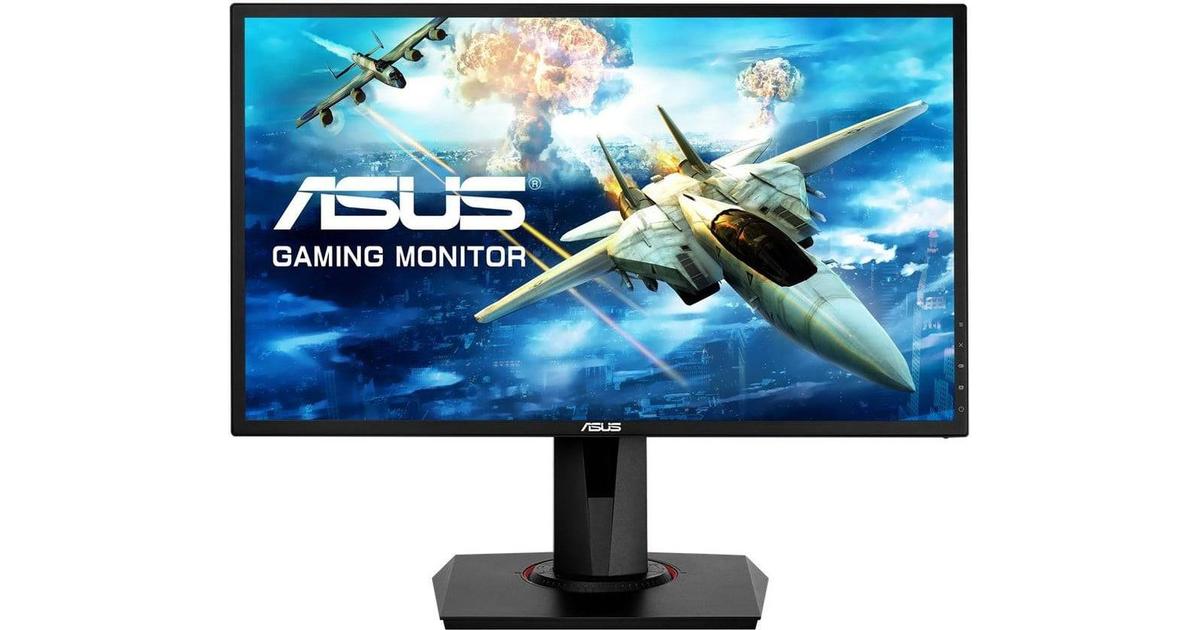
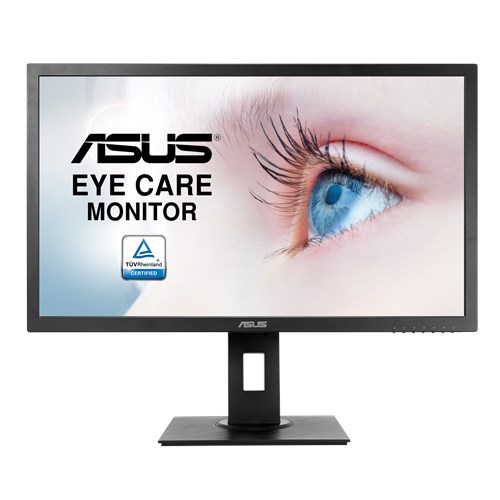
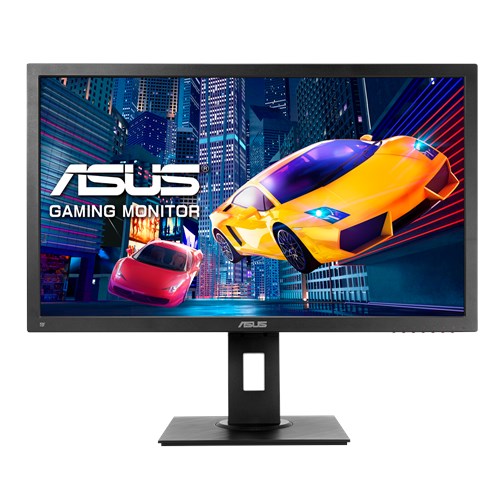
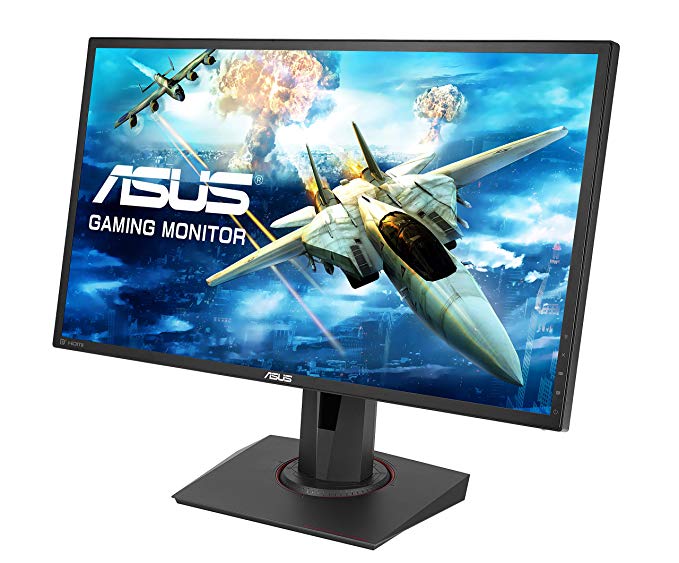
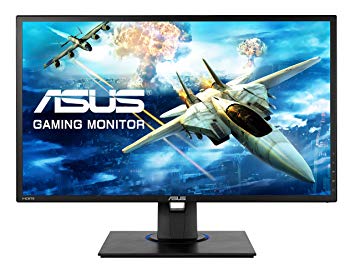
24" Asus VG245H benchmark delle prestazioni del monitor di gioco
Per la qualità del colore della grafica, la Asus VG245H ha un'eccellente profondità di colore di 8 -bit, con conseguente sfumatura più uniforme e colori più precisi. In termini di densità dei pixel, il Asus VG245H ha un'eccellente densità di 91 pixel per pollice, risultando in testo più nitido e qualità delle immagini. Per il tasso di risposta medio, i Asus VG245H punteggi 5 ms, che garantiscono una sincronizzazione efficace con l'alta frequenza di aggiornamento. Il tasso di risposta minimo di Asus VG245H è 1 ms, che elimina gli effetti ghosting. Con il supporto AMD FreeSync, questo monitor è compatibile con entrambe le schede grafiche AMD e NVIDIA. Il monitor ha un attacco VESA. Asus VG245H ha un ritardo di input totale di 20 ms, che è negativo tra la concorrenza. Il monitor utilizza un pannello TN che risente dello spostamento del colore quando viene visualizzato da angoli orizzontali e verticali e presenta colori leggermente lavati rispetto ai pannelli IPS e VA. Giochi graficamente esigenti possono causare cadute di fotogrammi al di fuori della frequenza di aggiornamento di 56 Hz. Il Asus VG245H ha una frequenza di aggiornamento massima di 75 Hz e questo potrebbe essere troppo basso per i frame rate estremamente veloci nei giochi competitivi. Vale la pena notare che il Asus VG245H è un monitor relativamente vecchio. Il monitor ha un rapporto di contrasto insignificante di 1000 : 1. Asus VG245H non ha una porta display e per le schede NVIDIA è essenziale lavorare con AMD FreeSync. La luminosità di Asus VG245H è inferiore rispetto ad altri monitor.
24" Asus VG245H Certificates, standards and licenses
Certificates, standards and licenses
BSMICBCCCCECEL level 1cTickCUeStandbyENERGY STARFCC Class BJ-MOSSKCCPSERCMRoHSTÜV Low Blue LightTÜV Flicker-freeUL/cULVCCIWEEEWHQL (Windows 10; Windows 8.1; Windows 7)
24" Asus VG245H Connectivity
Connectivity
2 x HDMI 1.4, 1 x D-sub, 1 x 3.5 mm Audio In, 1 x 3.5 mm Audio Out
24" Asus VG245H Dimensions, weight and color
Colors
Black
Depth
50 mm (millimeters) 5 cm (centimeters) 1.9685 in (inches) 0.164 ft (feet)
Depth with stand
211 mm (millimeters) 21.1 cm (centimeters) 8.3071 in (inches) 0.6923 ft (feet)
Height
329 mm (millimeters) 32.9 cm (centimeters) 12.9528 in (inches) 1.0794 ft (feet)
Height with stand
359 mm (millimeters) 35.9 cm (centimeters) 14.1339 in (inches) 1.1778 ft (feet)
Weight with stand
5.1 kg (kilograms) 11.24 lbs (pounds)
Width
561 mm (millimeters) 56.1 cm (centimeters) 22.0866 in (inches) 1.8406 ft (feet)
Width with stand
561 mm (millimeters) 56.1 cm (centimeters) 22.0866 in (inches) 1.8406 ft (feet)
24" Asus VG245H Display
Adobe RGB (1998)
70 % (percent)
Aspect ratio
1.778:116:9
Average response time
5 ms (milliseconds) 0.0050 s (seconds)
Backlight
W-LED
Brightness
250 cd/m² (candela per square meter)
Coating
Anti-glare/Matte
Colors
16777216 colors 24 bits
Diagonal
609.7 mm (millimeters) 60.97 cm (centimeters) 24.0039 in (inches) 2.0003 ft (feet)
Display area
86.05 % (percent)
Dynamic contrast
100000000 : 1
Height
298.89 mm (millimeters) 29.889 cm (centimeters) 11.7673 in (inches) 0.9806 ft (feet)
Horizontal viewing angle
170 ° (degrees)
Input lag
7 ms (milliseconds) 0.0070 s (seconds)
Maximum response time
15 ms (milliseconds) 0.0150 s (seconds)
Minimum response time
1 ms (milliseconds) 0.0010 s (seconds)
NTSC (1953)
72 % (percent)
Panel bit depth
8 bits
Panel type
TN
Pixel density
91 ppi (pixels per inch) 36 ppcm (pixels per centimeter)
Pixel pitch
0.277 mm (millimeters) 0.0277 cm (centimeters) 0.0109 in (inches) 0.0009 ft (feet)
Resolution
1920 x 1080 pixels Full HD / 1080p
Size class
24 in (inches)
Static contrast
1000 : 1
Vertical viewing angle
160 ° (degrees)
Width
531.36 mm (millimeters) 53.136 cm (centimeters) 20.9197 in (inches) 1.7433 ft (feet)
sRGB
95 % (percent)
24" Asus VG245H Ergonomics
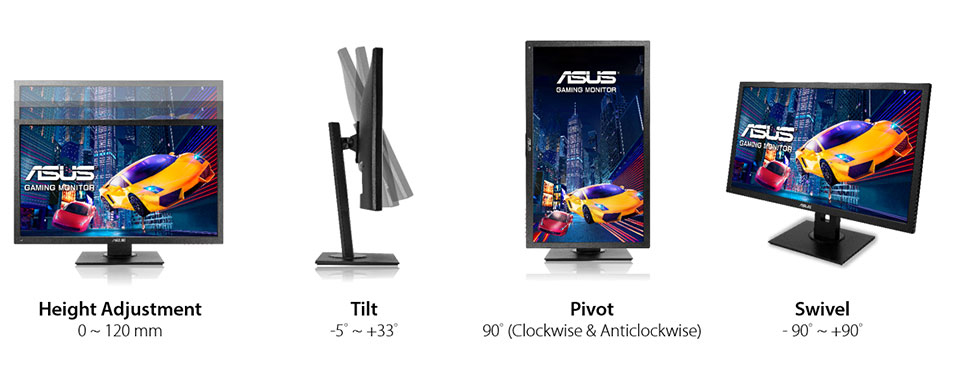
Backward tilt
33 ° (degrees)
Forward tilt
5 ° (degrees)
Forward/backward tilt
Yes
Height adjustment
Yes
Height adjustment range
130 mm (millimeters) 13 cm (centimeters) 5.1181 in (inches) 0.4265 ft (feet)
The Asus VG245H offers impressive picture quality, responsiveness and special features for under $200. ... Asus VG245H Review: An Awesome Gaming Monitor Value. ... Verdict. The Asus VG245H offers ...
We have no doubt that the VG245H will attract plenty of buyers. It represents a price breakthrough for sure and is about the only display from a major company that offers adaptive-refresh in any ...
Conclusion. We have no doubt that the VG245H will attract plenty of buyers. It represents a price breakthrough for sure and is about the only display from a major company that offers adaptive ...
The VG245H includes the same GamePlus features we saw on the PG248Q. You get a selection of reticles, four countdown timers, an FPS counter and an alignment guide.
ASUS VG245H Refresh rate lock
What's up with the ASUS VG245H? If I try to set a custom refresh rate higher than 75hz, I lose connection to the hdmi output and the monitor refuses to connect until I set it back to 75hz. What kind of sorcery is this? Is there any way to work around it and let me go higher than 75hz?
Monitor is advertised to run at 75hz btw, then there's an another model which has 144hz but looks identical to the one I have so it was probably done on purpose.
00
W
wildbill3367 years ago
Asus vg245h xbox
Is it possible to use freesync with asus 24inch vg245h and xbox one x?
I purchased the monitor hooked everything up and the variable refresh rate option in the xbox settings menu is grey. Can not click it. I spoke to microsoft who then gave me asus contact support who said they have no monitors that support hdmi 2 which i found weird cause i am pretty sure i read somewhere before i made the purchase that it was compatible. Please can someone help me or else i need to return this monitor. Thanks in advance.
00
K
kloutkobain7 years ago
ASUS VG245H monitor Issues
I have this monitor and I've tried it all and I cant seem to fix the screen tearing that I get in the middle and 1/3 down of the top of the screen. Is there anything I can possibly do to stop it?
00
P
photonboy7 years ago
kloutkobain :
Barty1884 :
Screen "tearing" or a defect? If you're experiencing "tearing" in game, capping a framerate would help.
Yeah I've done that and even capped it below 75 fps and even at 60 fps with 75hz on and still no fix.
Capping the FPS doesn't get rid of screen tearing even if the FPS matches the monitor refresh rate. You need to enable VSYNC to get rid of screen tearing. VSYNC results in an FPS cap that matches your monitor refresh rate but it's synchronized in order to prevent screen tearing (new and old frame data mixed with same refresh).
VSYNC advantage is no screen tearing.
VSYNC disadvantage is added lag (a bit more sluggish).
When you do that it's best to configure the game settings so they rarely dip below that FPS. Which is apparently 75FPS to match 75Hz.
Another option still involves VSYNC but (for NVidia) it's called Adaptive VSYNC and it just toggles VSYNC OFF if you drop below 75FPS (for 75Hz monitor) to prevent added STUTTERING but you'll get screen tearing again though it's often a good tradeoff to get some quick tearing rather than stuttering.
NCP-> manage 3d settings-> add game-> ... adaptive vsync-> save
(similar feature for AMD with Radeon Pro called Dynamic VSYNC which works exactly the same. Not sure if there is another AMD tool or if their drivers have it)
When I use that I start the game with VSYNC OFF at first then configure settings so I am at the target (75FPS/75Hz) at least 90% of the time as a good balance between visuals and screen tear frequency.
00
S
Someonewithadesk8 years ago
How to get VG245H to 75Hz and how to use Freesync
So I have 2 questions about the VG245H monitor that I have bought:
1: The monitor advertises a 75Hz refresh rate, but whenever I go into the monitors settings, it says 60Hz. How do I get it to 75? I definitely have a pc that should easily support 75hz at 1080p.
2: I have an MSI RX480 gpu, and the monitor advertises Freesync compatibility. However, when I go into the software that came with the gpu drivers and I go into the monitor settings, it says "freesync not supported". How do I get them to use freesync together?
Thanks!
00
C
chidybangz8 years ago
I just figured out how to get 75hz. On your desktop right click and select display settings. scroll down and select advanced display settings than display adapter properties. Moniter tab and select 75 hz refresh rate. Good Luck








Cosa prendere in considerazione prima di acquistare una scheda grafica
Se hai intenzione di aggiornare il tuo sistema acquistando una nuova scheda grafica. Quindi ci sono alcuni fattori importanti da considerare.
Risoluzione VS Qualità: impatto sulle prestazioni del gioco
Cosa influenza le prestazioni del gioco? Chiarezza o dettagli?
Impostazioni Ultra VS di alta qualità nei giochi per PC
Ogni giocatore ha una nozione diversa sull'impostazione ideale per i giochi per PC. Ma nella maggior parte dei casi, optare per una configurazione grafica di alta qualità è la strada da percorrere.
Cosa sono i colli di bottiglia della CPU o della GPU?
Stai subendo improvvise cadute di frame? potresti avere un collo di bottiglia.
Qual è la velocità FPS accettabile per me?
Per alcuni giochi, puoi comunque goderti fantastici panorami con frame rate più bassi.
GPU Hierarchy
GPU Compare
CPU Compare
Gaming Laptops
Gaming Monitors
Gaming Headsets
Discussione e commenti
Condividi i tuoi commenti
What's up with the ASUS VG245H? If I try to set a custom refresh rate higher than 75hz, I lose connection to the hdmi output and the monitor refuses to connect until I set it back to 75hz. What kind of sorcery is this? Is there any way to work around it and let me go higher than 75hz?
Monitor is advertised to run at 75hz btw, then there's an another model which has 144hz but looks identical to the one I have so it was probably done on purpose.
Is it possible to use freesync with asus 24inch vg245h and xbox one x?
I purchased the monitor hooked everything up and the variable refresh rate option in the xbox settings menu is grey. Can not click it. I spoke to microsoft who then gave me asus contact support who said they have no monitors that support hdmi 2 which i found weird cause i am pretty sure i read somewhere before i made the purchase that it was compatible. Please can someone help me or else i need to return this monitor. Thanks in advance.
I have this monitor and I've tried it all and I cant seem to fix the screen tearing that I get in the middle and 1/3 down of the top of the screen. Is there anything I can possibly do to stop it?
kloutkobain :
Barty1884 :
Screen "tearing" or a defect? If you're experiencing "tearing" in game, capping a framerate would help.
Yeah I've done that and even capped it below 75 fps and even at 60 fps with 75hz on and still no fix.
Capping the FPS doesn't get rid of screen tearing even if the FPS matches the monitor refresh rate. You need to enable VSYNC to get rid of screen tearing. VSYNC results in an FPS cap that matches your monitor refresh rate but it's synchronized in order to prevent screen tearing (new and old frame data mixed with same refresh).
VSYNC advantage is no screen tearing.
VSYNC disadvantage is added lag (a bit more sluggish).
When you do that it's best to configure the game settings so they rarely dip below that FPS. Which is apparently 75FPS to match 75Hz.
Another option still involves VSYNC but (for NVidia) it's called Adaptive VSYNC and it just toggles VSYNC OFF if you drop below 75FPS (for 75Hz monitor) to prevent added STUTTERING but you'll get screen tearing again though it's often a good tradeoff to get some quick tearing rather than stuttering.
NCP-> manage 3d settings-> add game-> ... adaptive vsync-> save
(similar feature for AMD with Radeon Pro called Dynamic VSYNC which works exactly the same. Not sure if there is another AMD tool or if their drivers have it)
When I use that I start the game with VSYNC OFF at first then configure settings so I am at the target (75FPS/75Hz) at least 90% of the time as a good balance between visuals and screen tear frequency.
So I have 2 questions about the VG245H monitor that I have bought:
1: The monitor advertises a 75Hz refresh rate, but whenever I go into the monitors settings, it says 60Hz. How do I get it to 75? I definitely have a pc that should easily support 75hz at 1080p.
2: I have an MSI RX480 gpu, and the monitor advertises Freesync compatibility. However, when I go into the software that came with the gpu drivers and I go into the monitor settings, it says "freesync not supported". How do I get them to use freesync together?
Thanks!
I just figured out how to get 75hz. On your desktop right click and select display settings. scroll down and select advanced display settings than display adapter properties. Moniter tab and select 75 hz refresh rate. Good Luck