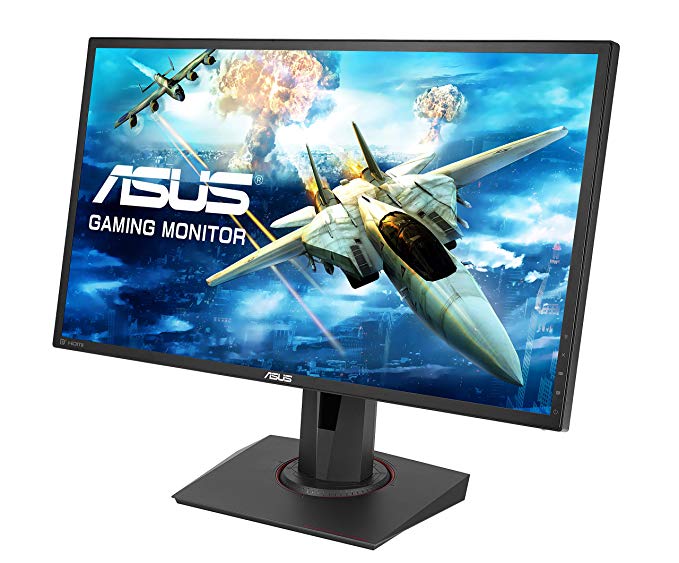
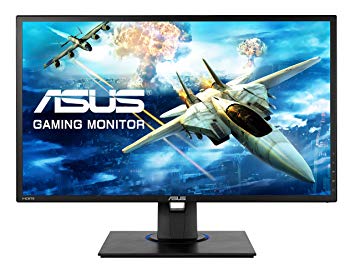
Výkonnostní měřítka herního monitoru 24" Asus VG245H
Minimální míra odezvy Asus VG245H je 1 ms, což eliminuje efekty stínování. S podporou AMD FreeSync je tento monitor kompatibilní s grafickými kartami AMD i NVIDIA. Pro kvalitu barev grafiky má Asus VG245H vynikající barevnou hloubku 8 -bit, což má za následek hladší přechody a přesnější barvy. Monitor má držák VESA. Pokud jde o hustotu pixelů, Asus VG245H má vynikající hustotu 91 pixelů na palec, což má za následek ostřejší kvalitu textu a kvality obrazu. Pro průměrnou míru odezvy Asus VG245H skóre 5 ms, která zajišťuje účinnou synchronizaci s vysokou obnovovací frekvencí. Asus VG245H nemá žádný Display Port, který je nezbytný pro karty NVIDIA pro práci s AMD FreeSync. Graficky náročné hry mohou způsobit pokles snímků mimo adativní obnovovací frekvenci 56 Hz. Jas Asus VG245H je nižší než u ostatních monitorů. Monitor používá TN panel, který trpí posunem barev při pohledu z horizontálního a vertikálního úhlu a má mírně umyté barvy ve srovnání s panely IPS a VA. Monitor má kontrastní poměr 1000 : 1. Asus VG245H má maximální obnovovací frekvenci 75 Hz a to může být příliš nízké pro extrémně rychlé snímkové frekvence v konkurenčních hrách. Stojí za zmínku, že Asus VG245H je poměrně starý monitor. Asus VG245H má celkový vstupní zpoždění 20 ms, což je špatné v soutěži.
24" Asus VG245H Certificates, standards and licenses
Certificates, standards and licenses
BSMICBCCCCECEL level 1cTickCUeStandbyENERGY STARFCC Class BJ-MOSSKCCPSERCMRoHSTÜV Low Blue LightTÜV Flicker-freeUL/cULVCCIWEEEWHQL (Windows 10; Windows 8.1; Windows 7)
24" Asus VG245H Connectivity
Connectivity
2 x HDMI 1.4, 1 x D-sub, 1 x 3.5 mm Audio In, 1 x 3.5 mm Audio Out
24" Asus VG245H Dimensions, weight and color
Colors
Black
Depth
50 mm (millimeters) 5 cm (centimeters) 1.9685 in (inches) 0.164 ft (feet)
Depth with stand
211 mm (millimeters) 21.1 cm (centimeters) 8.3071 in (inches) 0.6923 ft (feet)
Height
329 mm (millimeters) 32.9 cm (centimeters) 12.9528 in (inches) 1.0794 ft (feet)
Height with stand
359 mm (millimeters) 35.9 cm (centimeters) 14.1339 in (inches) 1.1778 ft (feet)
Weight with stand
5.1 kg (kilograms) 11.24 lbs (pounds)
Width
561 mm (millimeters) 56.1 cm (centimeters) 22.0866 in (inches) 1.8406 ft (feet)
Width with stand
561 mm (millimeters) 56.1 cm (centimeters) 22.0866 in (inches) 1.8406 ft (feet)
24" Asus VG245H Display
Adobe RGB (1998)
70 % (percent)
Aspect ratio
1.778:116:9
Average response time
5 ms (milliseconds) 0.0050 s (seconds)
Backlight
W-LED
Brightness
250 cd/m² (candela per square meter)
Coating
Anti-glare/Matte
Colors
16777216 colors 24 bits
Diagonal
609.7 mm (millimeters) 60.97 cm (centimeters) 24.0039 in (inches) 2.0003 ft (feet)
Display area
86.05 % (percent)
Dynamic contrast
100000000 : 1
Height
298.89 mm (millimeters) 29.889 cm (centimeters) 11.7673 in (inches) 0.9806 ft (feet)
Horizontal viewing angle
170 ° (degrees)
Input lag
7 ms (milliseconds) 0.0070 s (seconds)
Maximum response time
15 ms (milliseconds) 0.0150 s (seconds)
Minimum response time
1 ms (milliseconds) 0.0010 s (seconds)
NTSC (1953)
72 % (percent)
Panel bit depth
8 bits
Panel type
TN
Pixel density
91 ppi (pixels per inch) 36 ppcm (pixels per centimeter)
Pixel pitch
0.277 mm (millimeters) 0.0277 cm (centimeters) 0.0109 in (inches) 0.0009 ft (feet)
Resolution
1920 x 1080 pixels Full HD / 1080p
Size class
24 in (inches)
Static contrast
1000 : 1
Vertical viewing angle
160 ° (degrees)
Width
531.36 mm (millimeters) 53.136 cm (centimeters) 20.9197 in (inches) 1.7433 ft (feet)
sRGB
95 % (percent)
24" Asus VG245H Ergonomics
Backward tilt
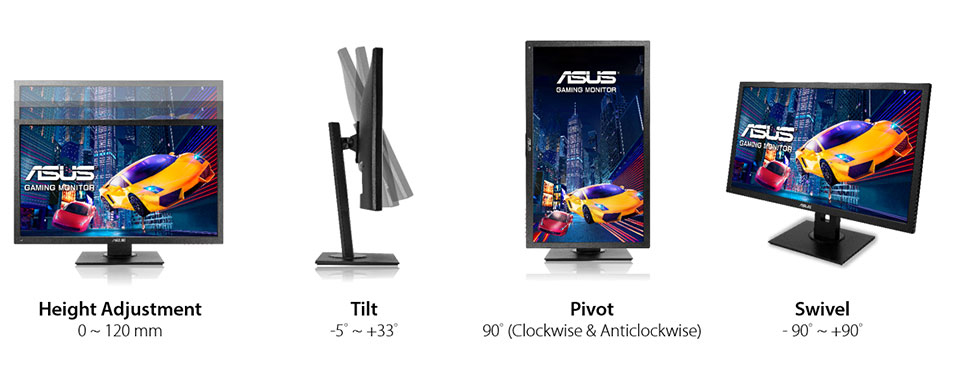
33 ° (degrees)
Forward tilt
5 ° (degrees)
Forward/backward tilt
Yes
Height adjustment
Yes
Height adjustment range
130 mm (millimeters) 13 cm (centimeters) 5.1181 in (inches) 0.4265 ft (feet)
The Asus VG245H offers impressive picture quality, responsiveness and special features for under $200. ... Asus VG245H Review: An Awesome Gaming Monitor Value. ... Verdict. The Asus VG245H offers ...
We have no doubt that the VG245H will attract plenty of buyers. It represents a price breakthrough for sure and is about the only display from a major company that offers adaptive-refresh in any ...
Conclusion. We have no doubt that the VG245H will attract plenty of buyers. It represents a price breakthrough for sure and is about the only display from a major company that offers adaptive ...
The VG245H includes the same GamePlus features we saw on the PG248Q. You get a selection of reticles, four countdown timers, an FPS counter and an alignment guide.
ASUS VG245H Refresh rate lock
What's up with the ASUS VG245H? If I try to set a custom refresh rate higher than 75hz, I lose connection to the hdmi output and the monitor refuses to connect until I set it back to 75hz. What kind of sorcery is this? Is there any way to work around it and let me go higher than 75hz?
Monitor is advertised to run at 75hz btw, then there's an another model which has 144hz but looks identical to the one I have so it was probably done on purpose.
00
W
wildbill3367 years ago
Asus vg245h xbox
Is it possible to use freesync with asus 24inch vg245h and xbox one x?
I purchased the monitor hooked everything up and the variable refresh rate option in the xbox settings menu is grey. Can not click it. I spoke to microsoft who then gave me asus contact support who said they have no monitors that support hdmi 2 which i found weird cause i am pretty sure i read somewhere before i made the purchase that it was compatible. Please can someone help me or else i need to return this monitor. Thanks in advance.
00
K
kloutkobain7 years ago
ASUS VG245H monitor Issues
I have this monitor and I've tried it all and I cant seem to fix the screen tearing that I get in the middle and 1/3 down of the top of the screen. Is there anything I can possibly do to stop it?
00
P
photonboy7 years ago
kloutkobain :
Barty1884 :
Screen "tearing" or a defect? If you're experiencing "tearing" in game, capping a framerate would help.
Yeah I've done that and even capped it below 75 fps and even at 60 fps with 75hz on and still no fix.
Capping the FPS doesn't get rid of screen tearing even if the FPS matches the monitor refresh rate. You need to enable VSYNC to get rid of screen tearing. VSYNC results in an FPS cap that matches your monitor refresh rate but it's synchronized in order to prevent screen tearing (new and old frame data mixed with same refresh).
VSYNC advantage is no screen tearing.
VSYNC disadvantage is added lag (a bit more sluggish).
When you do that it's best to configure the game settings so they rarely dip below that FPS. Which is apparently 75FPS to match 75Hz.
Another option still involves VSYNC but (for NVidia) it's called Adaptive VSYNC and it just toggles VSYNC OFF if you drop below 75FPS (for 75Hz monitor) to prevent added STUTTERING but you'll get screen tearing again though it's often a good tradeoff to get some quick tearing rather than stuttering.
NCP-> manage 3d settings-> add game-> ... adaptive vsync-> save
(similar feature for AMD with Radeon Pro called Dynamic VSYNC which works exactly the same. Not sure if there is another AMD tool or if their drivers have it)
When I use that I start the game with VSYNC OFF at first then configure settings so I am at the target (75FPS/75Hz) at least 90% of the time as a good balance between visuals and screen tear frequency.
00
S
Someonewithadesk8 years ago
How to get VG245H to 75Hz and how to use Freesync
So I have 2 questions about the VG245H monitor that I have bought:
1: The monitor advertises a 75Hz refresh rate, but whenever I go into the monitors settings, it says 60Hz. How do I get it to 75? I definitely have a pc that should easily support 75hz at 1080p.
2: I have an MSI RX480 gpu, and the monitor advertises Freesync compatibility. However, when I go into the software that came with the gpu drivers and I go into the monitor settings, it says "freesync not supported". How do I get them to use freesync together?
Thanks!
00
C
chidybangz8 years ago
I just figured out how to get 75hz. On your desktop right click and select display settings. scroll down and select advanced display settings than display adapter properties. Moniter tab and select 75 hz refresh rate. Good Luck

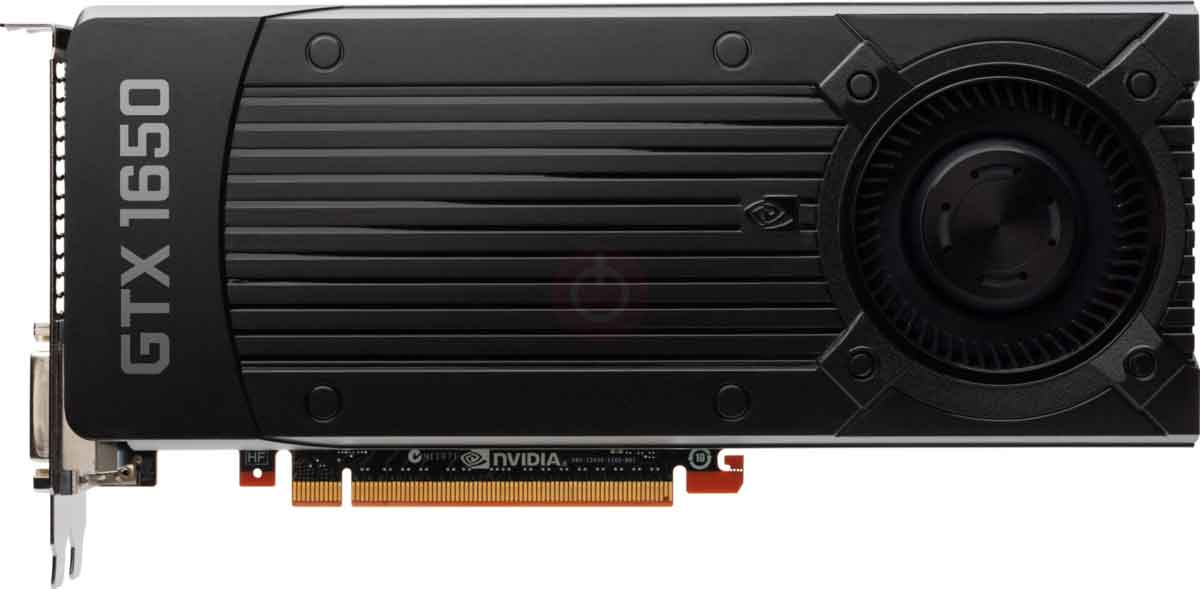
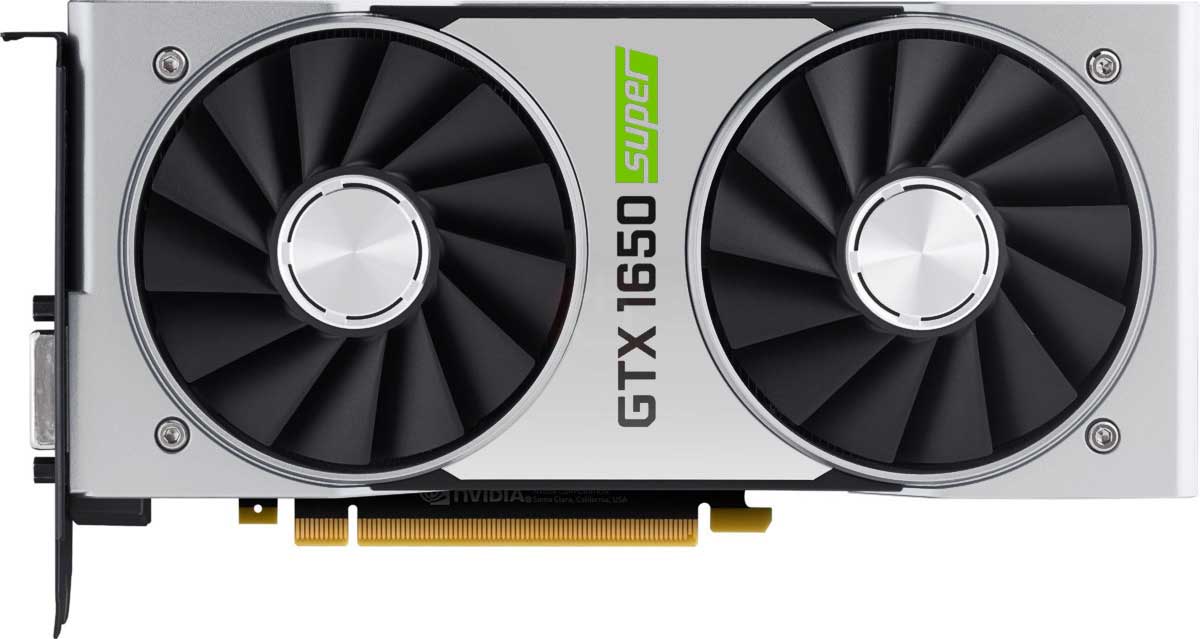
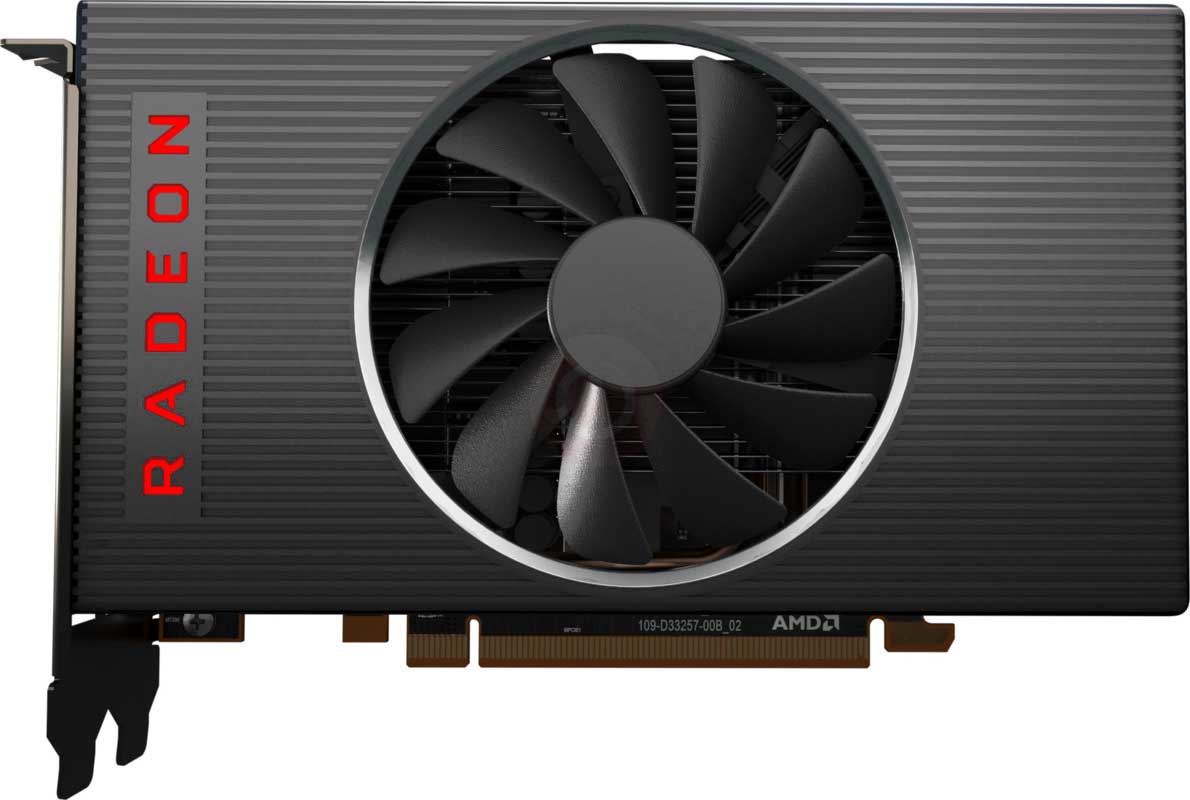
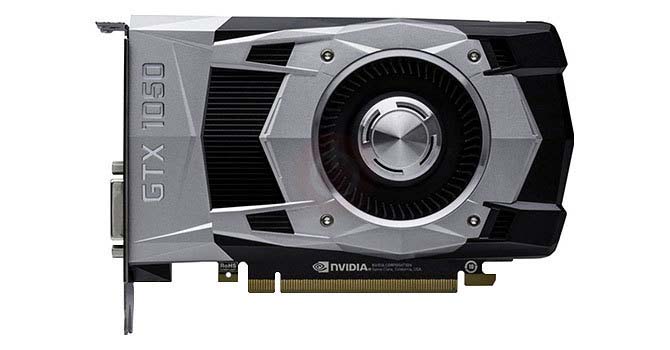







Co je třeba zvážit před zakoupením grafické karty
Pokud jste plánovali upgrade vašeho systému zakoupením nové grafické karty. Pak jsou některé důležité faktory, které je třeba zvážit.
Rozlišení VS Kvalita: Dopad na výkon hry
Co ovlivňuje výkon hry? Čistota nebo podrobnosti?
Ultra VS Vysoká kvalita nastavení v PC her
Každý hráč má jinou představu o ideálním nastavení pro hry PC. Ve většině případů se však rozhodnete pro kvalitní grafickou konfiguraci.
Co jsou CPU nebo GPU bariéry?
Získáváte náhlé poklesy rámců? můžete mít překážku.
Jaká je přijatelná rychlost FPS pro mě?
U některých her si můžete stále užívat skvělé garfy s nižšími rychlostmi.
GPU Hierarchy
GPU Compare
CPU Compare
Gaming Laptops
Gaming Monitors
Gaming Headsets
Diskuse a komentáře
Sdílejte své komentáře
What's up with the ASUS VG245H? If I try to set a custom refresh rate higher than 75hz, I lose connection to the hdmi output and the monitor refuses to connect until I set it back to 75hz. What kind of sorcery is this? Is there any way to work around it and let me go higher than 75hz?
Monitor is advertised to run at 75hz btw, then there's an another model which has 144hz but looks identical to the one I have so it was probably done on purpose.
Is it possible to use freesync with asus 24inch vg245h and xbox one x?
I purchased the monitor hooked everything up and the variable refresh rate option in the xbox settings menu is grey. Can not click it. I spoke to microsoft who then gave me asus contact support who said they have no monitors that support hdmi 2 which i found weird cause i am pretty sure i read somewhere before i made the purchase that it was compatible. Please can someone help me or else i need to return this monitor. Thanks in advance.
I have this monitor and I've tried it all and I cant seem to fix the screen tearing that I get in the middle and 1/3 down of the top of the screen. Is there anything I can possibly do to stop it?
kloutkobain :
Barty1884 :
Screen "tearing" or a defect? If you're experiencing "tearing" in game, capping a framerate would help.
Yeah I've done that and even capped it below 75 fps and even at 60 fps with 75hz on and still no fix.
Capping the FPS doesn't get rid of screen tearing even if the FPS matches the monitor refresh rate. You need to enable VSYNC to get rid of screen tearing. VSYNC results in an FPS cap that matches your monitor refresh rate but it's synchronized in order to prevent screen tearing (new and old frame data mixed with same refresh).
VSYNC advantage is no screen tearing.
VSYNC disadvantage is added lag (a bit more sluggish).
When you do that it's best to configure the game settings so they rarely dip below that FPS. Which is apparently 75FPS to match 75Hz.
Another option still involves VSYNC but (for NVidia) it's called Adaptive VSYNC and it just toggles VSYNC OFF if you drop below 75FPS (for 75Hz monitor) to prevent added STUTTERING but you'll get screen tearing again though it's often a good tradeoff to get some quick tearing rather than stuttering.
NCP-> manage 3d settings-> add game-> ... adaptive vsync-> save
(similar feature for AMD with Radeon Pro called Dynamic VSYNC which works exactly the same. Not sure if there is another AMD tool or if their drivers have it)
When I use that I start the game with VSYNC OFF at first then configure settings so I am at the target (75FPS/75Hz) at least 90% of the time as a good balance between visuals and screen tear frequency.
So I have 2 questions about the VG245H monitor that I have bought:
1: The monitor advertises a 75Hz refresh rate, but whenever I go into the monitors settings, it says 60Hz. How do I get it to 75? I definitely have a pc that should easily support 75hz at 1080p.
2: I have an MSI RX480 gpu, and the monitor advertises Freesync compatibility. However, when I go into the software that came with the gpu drivers and I go into the monitor settings, it says "freesync not supported". How do I get them to use freesync together?
Thanks!
I just figured out how to get 75hz. On your desktop right click and select display settings. scroll down and select advanced display settings than display adapter properties. Moniter tab and select 75 hz refresh rate. Good Luck