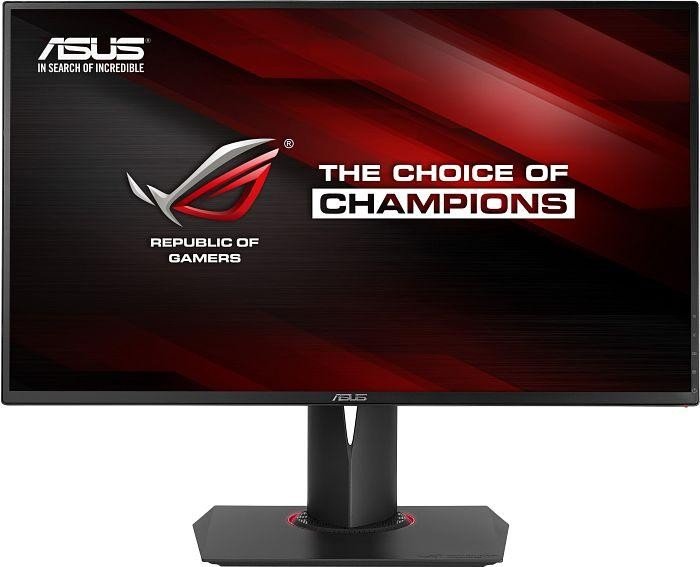
27" Asus RoG Swift PG278Q มาตรฐานการตรวจสอบประสิทธิภาพการเล่นเกม
สำหรับอัตราการตอบกลับโดยเฉลี่ยนั้น Asus RoG Swift PG278Q คะแนน 3 ms ซึ่งทำให้มั่นใจได้ถึงการประสานที่มีประสิทธิภาพกับอัตราการรีเฟรชที่สูง. Asus RoG Swift PG278Q มี Display Port และนี่เป็นสิ่งจำเป็นสำหรับการ์ด NVIDIA ที่จะทำงานร่วมกับ AMD FreeSync. สำหรับอัตราเฟรมที่เร็วที่สุด Asus RoG Swift PG278Q มีอัตราการรีเฟรชสูงสุดที่ 144 Hz ที่อนุญาตให้เล่นเกมได้ราบรื่นขึ้น. อัตราการตอบกลับต่ำสุดคือ Asus RoG Swift PG278Q คือ 1 ms ซึ่งจะกำจัดเอฟเฟกต์โกสต์. จอภาพมีตัวยึด VESA. Asus RoG Swift PG278Q มีความล่าช้าในการป้อนข้อมูลทั้งหมด 10.5 ms ซึ่งยอดเยี่ยมในการแข่งขัน. ในแง่ของความหนาแน่นของพิกเซล Asus RoG Swift PG278Q มีความหนาแน่นที่ยอดเยี่ยมของ 109 พิกเซลต่อนิ้วส่งผลให้คุณภาพของข้อความและภาพคมชัดยิ่งขึ้น. สำหรับคุณภาพสีกราฟิก Asus RoG Swift PG278Q มีความลึกของสีที่ยอดเยี่ยมเป็น 8 บิตทำให้ได้การไล่ระดับสีที่ราบรื่นและสีที่แม่นยำยิ่งขึ้น. ความสว่างของ Asus RoG Swift PG278Q ต่ำกว่าจอภาพอื่น. จอภาพใช้แผงควบคุม TN ซึ่งทนทุกข์ทรมานจากการเปลี่ยนสีเมื่อมองจากมุมแนวนอนและแนวตั้งและมีสีที่ซักเล็กน้อยเมื่อเทียบกับแผง IPS และ VA. จอภาพมีอัตราส่วนคอนทราสต์ที่ไม่น่าประทับใจเท่ากับ 1000 : 1. หากไม่มีการสนับสนุน AMD FreeSync จอภาพนี้ไม่สามารถใช้งานร่วมกับการ์ดกราฟิก AMD. เกมที่เรียกร้องแบบกราฟิกอาจทำให้เฟรมลดลงนอกอัตราการรีเฟรช adative ที่ 60 Hz. เป็นที่น่าสังเกตว่า Asus RoG Swift PG278Q เป็นจอภาพที่ค่อนข้างเก่า.
ASUS ROG Swift PG278Q - Stuck in 24hz
Hi everyone,
I am having some issues with my ASUS ROG Swift PG278Q.
Have had this monitor since August 2015 with no issues. Now, they monitor started presenting
issues.
The main issue is that the monitor is stuck on 24hz refresh rate.
Troubleshooting I already tested:
- Went to the Nvidia control panel but doesn't show any other option in the dropdown menu for the
refresh rates.
- Can't force another refresh rate through the "Customize" button. It shows me a warning saying
that is "Out of Range". I also tried forcing the refresh rate with a 3rd party app.
- After pressing the quick refresh rate change button that is on the right side panel of the
monitor, open ups the menu but flickers.
http://imgur.com/jeA2tRe
- Tried 3 different Nvidia drivers. One from March 2018, the other from May 2018 and the last one
from Aug 2018.
- Tried buying a new DP cable (can't identify the manufacturer) but still the same issue than with
the original DP Cable that came with the monitor.
- Tried with another GPU (EVGA 1070ti), but same issue.
- Tried both PCI-e x16 sockets but same issue.
One noticeable thing is that, when I boot the PC, the BIOS manufacturer screen appears in 800x600.
If I enter the BIOS, it keeps that same resolution. It's the same default resolution I noticed
after I uninstalled the nvidia drivers and rebooted. It seems that in 800x600, the refresh rate
can go up to 60hz. Weird.
Things I stillhaven't tried yet:
- Connecting the monitor to another PC
- Connecting another monitor to this PC.
- A 3rd cable from a renowned manufacturer
- Format and install Win10
Note: Warranty for the product expired last month (yeah, great timing)
My PC:
- Display: ASUS ROG Swift PG278Q
- CPU: i7 4790k 4Ghz
- MoBo: ASUS ROG MAXIMUS VII HERO LGA 1150
- RAM: G.SKILL TridentX Series 16GB
- GPU: ASUS ROG-STRIX-GTX1080TI
If someone has any idea, or step I could try, it would be greatly appreciated.
00
J
jacob_latham7 years ago
Were you able to diagnose this? I have the same monitor having the same issues now. Talked to Asus customer support and they were pretty worthless. Since this has happened to so many people you would think it's a manufacturer defect and that they should be the ones responsible for fixing it. However they want to charge me $600+ to fix a 4 year old monitor.
I've tried multiple display port cables, I've connected it to another computer, connected another monitor (also supports 144hz) to my PC and it works fine. Only thing I haven't tried, like you, is to reinstall windows 10. Was thinking about seeing if the monitor would work in linux.
Let me know if you figured anything out.
00
M
MrRage7 years ago
ASUS ROG Swift PG278Q "No Signal" Issue
Hi guys not sure how to solve this issue on my monitor, (ASUS ROG Swift PG278Q) when plugged into the power source the asus annimated logo shows up fine with a thing red line down the right of the screen (not worried about that at the moment) then hits the "no signal" page as nothing is plugged in, then I plug in my DP to DVI adapter the DVI end going to the pc and DP in the monitor as thats the only input on this model and its still a black screen, even when I power off then on the monitor and remove the power cord and plug it back in its still "no signal" and then a black screen as if the monitors gone into sleep, any fixes for this at all? as I currently have the monitor apart going to try anything.
thanks for your time.
00
S
samwt138 years ago
ASUS ROG SWIFT PG278QR OSD Calibration settings
Hi guys, anyone got calibration settings for a ASUS ROG SWIFT PG278QR for best colour representation? There seems to be alot of PG278Q OSD settings out there but very few specifically for the QR. I understand the panels are very similar however, there are more OSD settings avaliable on the QR and would like a definitive set for it.....
Also if there are any NVIDIA control panel settings i should be making, please include in response!
00
J
Jayhawker328 years ago
Okay, so as far as I can tell the QR uses the same panel as the Q so if you found a reliable source for calibration settings for the Q they should be identical to what you would use on the QR. I personally prefer
tftcentral
; that link should take you to the page for the PG278Q as I couldn't find a calibration test they did specifically on the QR likely for the reason I stated above.
00
S
stealth809 years ago
Asus RoG Swift PG278Q
Hi, today I received my first ever Gsync monitor was excited. I hooked it up and straight away I noticed the text was quite blurry (only the black text/fonts, desktop fonts remain sharp) and figured it was because I was switching from an IPS monitor. I toyed with the turbo switch to change the refresh rate up from 60 to 120 to 144hz, that's operation in itself was quite clumbersome, I thought I would just press it once to show and again to shift it to the next refresh rate, however it is very hit and miss.
When the rate did eventually change I noticed some flickering around the screen, especially visible on the grey bars on the NVidia settings window. I toyed some more enabling/disabling gsync and SLI and the issue remained. It seems to have calmed down now, and is only visible in around 50% of situations. It persists through gsync on and off and I have tried 3 sets of drivers. The only time the flickering is 100% not present is if I enable ULMB.
Also gsync is permanently engaged unless I disable it in the driver, even on the desktop, I was under the impression the LED would be white and gsync disabled until a game was loaded up, however it remains red (and gsync mode is on in the screens OSD).
Below is a link to my desktop showing the flickering:
https://vimeo.com/154231377
And on the below link if you watch the "yes" box on the dialogue you can see that flickering also
https://vimeo.com/154235192
Thanks
00
D
Djdidier9 years ago
Asus ROG Swift PG278Q or the PG279Q
Hello there people,
since a local store has both monitors on sale and I have been looking to buy one for quite sometime, I think that the time has finally come for me to say goodbye to one of my IIyama monitors.
But now I am not sure which one of the 2 I should purchase. I have been reading a ton of reviews and stuff, and in my mind it came down to this, TN vs IPS and 144hz VS 165hz.
So my question is, is it worth the ~150 euro premium for the PG279Q or should I just go for the cheaper PG278Q?
if anyone has some advice for me, please let me know.
Thanks in advance,
Didier Ronda
00
B
bignastyid9 years ago
I'd get the PG279Q if you can afford it. IPS screens have a better image quality.
00
H
hatmann10 years ago
Asus RoG Swift PG278Q 144hz issue
I received this monitor today and every time I try to set it to 144hz it auto refreshes to 60hz. So far I've turned on extreme mode for 144hz and I have uninstalled my drivers and reinstalled them. The monitor is hooked up with Display Port. My computer specs are i7 5820k with 16gb 2400 ram and a evga geforce 980ti. I also have 2 other monitors hooked up 1 via hdmi and 1 vga/dvi adapter. Also geforce experience recognises it as a 59hz monitor.
00
C
chenw10 years ago
Try these:
In the nVidia control panel, in the 3D settings, under the heading "Refresh Rate", Change to "Highest possible", and then go to display settings -> Advanced display settings -> Monitor -> change the refresh rate to 120hz.
This should default your monitor to 120hz in desktops and 144hz in games.




สิ่งที่ควรพิจารณาก่อนซื้อกราฟิกการ์ด
หากคุณวางแผนที่จะอัพเกรดระบบของคุณโดยการซื้อการ์ดกราฟิกใหม่ จากนั้นมีปัจจัยสำคัญที่ต้องพิจารณา
ความละเอียด VS คุณภาพ: ส่งผลกระทบต่อประสิทธิภาพของเกม
ส่งผลกระทบต่อประสิทธิภาพของเกมอย่างไร ความชัดเจนหรือรายละเอียด?
การตั้งค่าคุณภาพสูงพิเศษ VS ในเกมพีซี
ผู้เล่นทุกคนมีแนวคิดที่แตกต่างกันเกี่ยวกับการตั้งค่าที่เหมาะสำหรับเกมพีซี แต่ในกรณีส่วนใหญ่การเลือกการกำหนดค่ากราฟิกคุณภาพสูงเป็นวิธีที่จะไป
คอขวดของ CPU หรือ GPU คืออะไร
คุณได้รับเฟรมกระทันหันหรือไม่? คุณอาจมีปัญหาคอขวด
ความเร็ว FPS ที่ยอมรับได้สำหรับฉันคืออะไร
สำหรับเกมบางเกมคุณยังสามารถเพลิดเพลินกับ garphics ที่อัตราเฟรมต่ำ
GPU Hierarchy
GPU Compare
CPU Compare
Gaming Laptops
Gaming Monitors
Gaming Headsets
การอภิปรายและแสดงความคิดเห็น
แบ่งปันความคิดเห็นของคุณ
Hi everyone,
I am having some issues with my ASUS ROG Swift PG278Q.
Have had this monitor since August 2015 with no issues. Now, they monitor started presenting
issues.
The main issue is that the monitor is stuck on 24hz refresh rate.
Troubleshooting I already tested:
- Went to the Nvidia control panel but doesn't show any other option in the dropdown menu for the
refresh rates.
- Can't force another refresh rate through the "Customize" button. It shows me a warning saying
that is "Out of Range". I also tried forcing the refresh rate with a 3rd party app.
- After pressing the quick refresh rate change button that is on the right side panel of the
monitor, open ups the menu but flickers.
http://imgur.com/jeA2tRe
- Tried 3 different Nvidia drivers. One from March 2018, the other from May 2018 and the last one
from Aug 2018.
- Tried buying a new DP cable (can't identify the manufacturer) but still the same issue than with
the original DP Cable that came with the monitor.
- Tried with another GPU (EVGA 1070ti), but same issue.
- Tried both PCI-e x16 sockets but same issue.
One noticeable thing is that, when I boot the PC, the BIOS manufacturer screen appears in 800x600.
If I enter the BIOS, it keeps that same resolution. It's the same default resolution I noticed
after I uninstalled the nvidia drivers and rebooted. It seems that in 800x600, the refresh rate
can go up to 60hz. Weird.
Things I stillhaven't tried yet:
- Connecting the monitor to another PC
- Connecting another monitor to this PC.
- A 3rd cable from a renowned manufacturer
- Format and install Win10
Note: Warranty for the product expired last month (yeah, great timing)
My PC:
- Display: ASUS ROG Swift PG278Q
- CPU: i7 4790k 4Ghz
- MoBo: ASUS ROG MAXIMUS VII HERO LGA 1150
- RAM: G.SKILL TridentX Series 16GB
- GPU: ASUS ROG-STRIX-GTX1080TI
If someone has any idea, or step I could try, it would be greatly appreciated.
Were you able to diagnose this? I have the same monitor having the same issues now. Talked to Asus customer support and they were pretty worthless. Since this has happened to so many people you would think it's a manufacturer defect and that they should be the ones responsible for fixing it. However they want to charge me $600+ to fix a 4 year old monitor.
I've tried multiple display port cables, I've connected it to another computer, connected another monitor (also supports 144hz) to my PC and it works fine. Only thing I haven't tried, like you, is to reinstall windows 10. Was thinking about seeing if the monitor would work in linux.
Let me know if you figured anything out.
Hi guys not sure how to solve this issue on my monitor, (ASUS ROG Swift PG278Q) when plugged into the power source the asus annimated logo shows up fine with a thing red line down the right of the screen (not worried about that at the moment) then hits the "no signal" page as nothing is plugged in, then I plug in my DP to DVI adapter the DVI end going to the pc and DP in the monitor as thats the only input on this model and its still a black screen, even when I power off then on the monitor and remove the power cord and plug it back in its still "no signal" and then a black screen as if the monitors gone into sleep, any fixes for this at all? as I currently have the monitor apart going to try anything.
thanks for your time.
Hi guys, anyone got calibration settings for a ASUS ROG SWIFT PG278QR for best colour representation? There seems to be alot of PG278Q OSD settings out there but very few specifically for the QR. I understand the panels are very similar however, there are more OSD settings avaliable on the QR and would like a definitive set for it.....
Also if there are any NVIDIA control panel settings i should be making, please include in response!
Okay, so as far as I can tell the QR uses the same panel as the Q so if you found a reliable source for calibration settings for the Q they should be identical to what you would use on the QR. I personally prefer
tftcentral
; that link should take you to the page for the PG278Q as I couldn't find a calibration test they did specifically on the QR likely for the reason I stated above.
Hi, today I received my first ever Gsync monitor was excited. I hooked it up and straight away I noticed the text was quite blurry (only the black text/fonts, desktop fonts remain sharp) and figured it was because I was switching from an IPS monitor. I toyed with the turbo switch to change the refresh rate up from 60 to 120 to 144hz, that's operation in itself was quite clumbersome, I thought I would just press it once to show and again to shift it to the next refresh rate, however it is very hit and miss.
When the rate did eventually change I noticed some flickering around the screen, especially visible on the grey bars on the NVidia settings window. I toyed some more enabling/disabling gsync and SLI and the issue remained. It seems to have calmed down now, and is only visible in around 50% of situations. It persists through gsync on and off and I have tried 3 sets of drivers. The only time the flickering is 100% not present is if I enable ULMB.
Also gsync is permanently engaged unless I disable it in the driver, even on the desktop, I was under the impression the LED would be white and gsync disabled until a game was loaded up, however it remains red (and gsync mode is on in the screens OSD).
Below is a link to my desktop showing the flickering:
https://vimeo.com/154231377
And on the below link if you watch the "yes" box on the dialogue you can see that flickering also
https://vimeo.com/154235192
Thanks
Hello there people,
since a local store has both monitors on sale and I have been looking to buy one for quite sometime, I think that the time has finally come for me to say goodbye to one of my IIyama monitors.
But now I am not sure which one of the 2 I should purchase. I have been reading a ton of reviews and stuff, and in my mind it came down to this, TN vs IPS and 144hz VS 165hz.
So my question is, is it worth the ~150 euro premium for the PG279Q or should I just go for the cheaper PG278Q?
if anyone has some advice for me, please let me know.
Thanks in advance,
Didier Ronda
I'd get the PG279Q if you can afford it. IPS screens have a better image quality.
I received this monitor today and every time I try to set it to 144hz it auto refreshes to 60hz. So far I've turned on extreme mode for 144hz and I have uninstalled my drivers and reinstalled them. The monitor is hooked up with Display Port. My computer specs are i7 5820k with 16gb 2400 ram and a evga geforce 980ti. I also have 2 other monitors hooked up 1 via hdmi and 1 vga/dvi adapter. Also geforce experience recognises it as a 59hz monitor.
Try these:
In the nVidia control panel, in the 3D settings, under the heading "Refresh Rate", Change to "Highest possible", and then go to display settings -> Advanced display settings -> Monitor -> change the refresh rate to 120hz.
This should default your monitor to 120hz in desktops and 144hz in games.